Our Top Picks


A HubSpot auto dialer should help you work the list you already have—not leave you with another list to reconcile after the call. Start with three questions: where will the rep dial, what will appear on the HubSpot record, and how will the next step get assigned?
Trellus adds power and parallel dialing inside supported HubSpot task, contact, company, and prospecting views. For the product walkthrough and available starting points, see Trellus for HubSpot. This guide helps you decide what to try first.
Watch a HubSpot call from list to saved activity
See the Contacts workflow in this 2:33 walkthrough, including dialing, the connected conversation, notes, and HubSpot activity.
Does HubSpot already have a dialer?
Yes. HubSpot supports browser calling from its Contacts index, contact records, calling remote, and conversations inbox. Its documentation covers calling setup, required Sales or Service seats, and subscription-dependent minutes. See HubSpot’s browser-calling guide for your account’s requirements.
If reps make occasional calls and the existing process keeps their records and follow-ups in order, start there. Adding another subscription is not automatically an improvement. A dedicated dialer becomes worth evaluating when reps spend a meaningful part of the day working outbound lists and need a different calling pace or live guidance.
Choose the calling workflow before the line count
“Auto dialer” is a broad label. Ask to see the exact mode you will use, on the HubSpot screen your team opens every morning.
- Power dialing: one number at a time. A practical starting point when reps need to read the record or prepare between conversations.
- Parallel dialing: multiple numbers at once. Evaluate the transition into a live conversation, not just how many ringing cards appear.
- Live coaching: guidance while the conversation is happening. Ask whether the suggestions fit your talk track and are easy to use without distracting the rep.
Trellus offers one-at-a-time power dialing and up to five simultaneous lines on eligible plans. Check current Trellus plans before choosing a line count. If coaching is part of the decision, watch how live call guidance works too.
Run this small HubSpot pilot
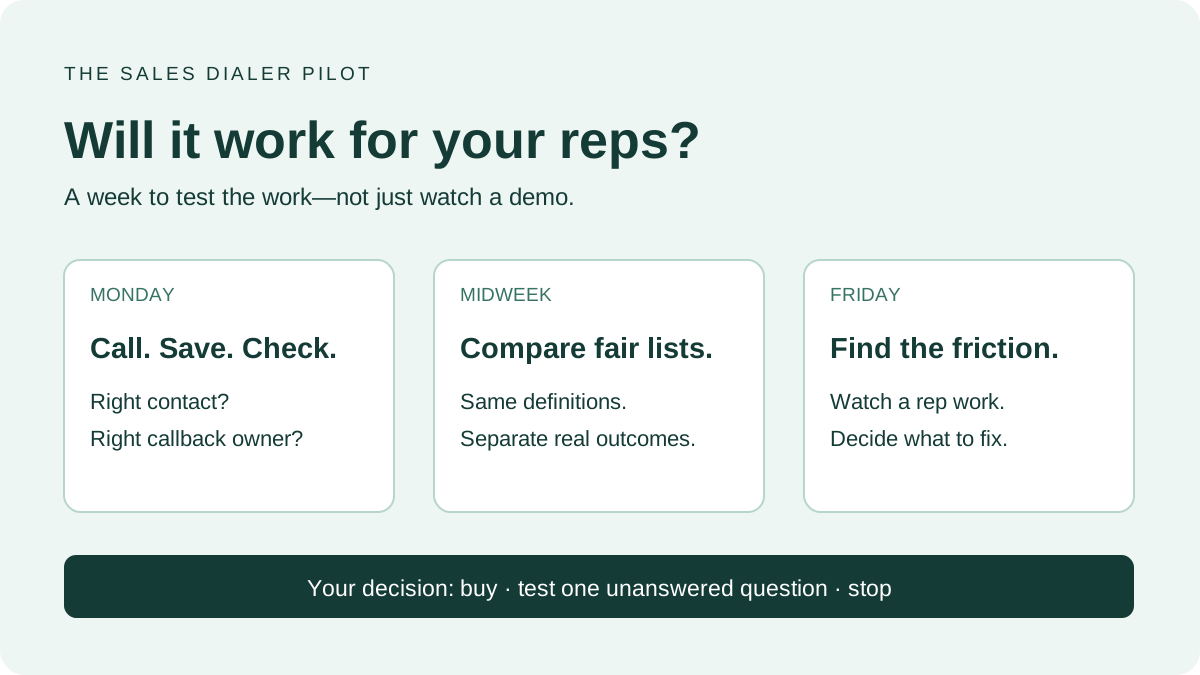
Pick a representative slice of your own calling work. Keep the audience, rep, offer, and time block comparable to your usual process. The aim is to find friction before moving the whole team.
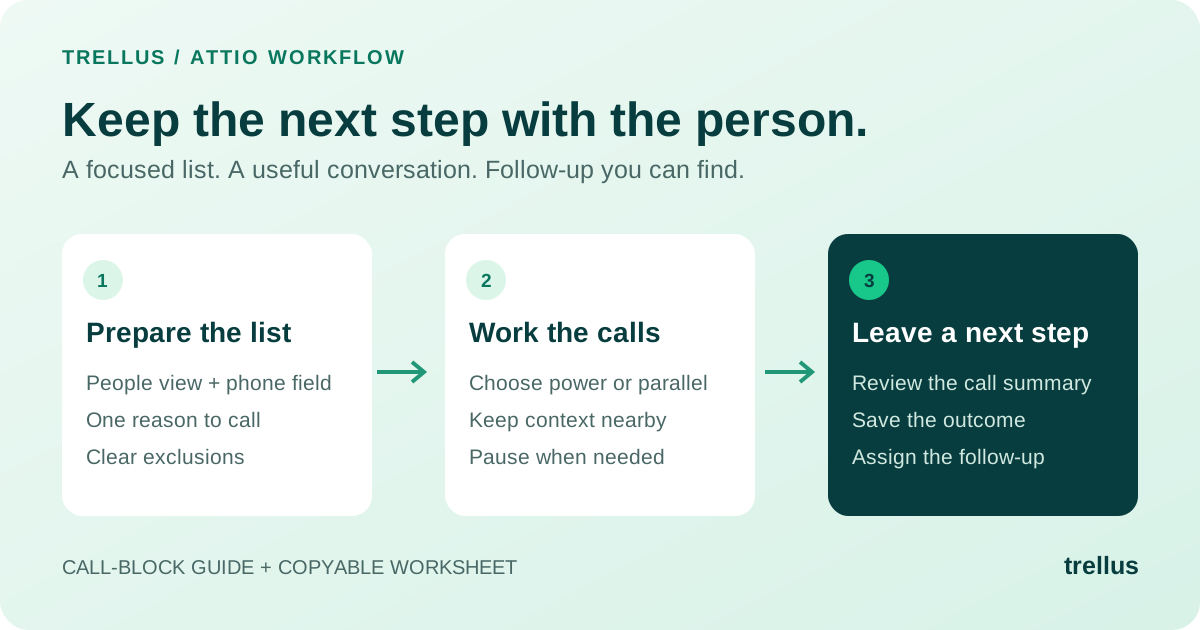
- Start with the right work. Use an existing Contacts view or a set of call tasks. Check ownership, phone fields, and who should be excluded before starting.
- Open Trellus beside the list. Choose the number and dialing mode. Your HubSpot subscription and permissions affect the views and outcomes available.
- Complete a conversation. Check that the rep can see the relevant contact or company while speaking. Note any navigation that interrupts the conversation.
- Finish the call record. Choose an outcome and review the notes. Trellus can save call activity with contact or company associations, and supported task workflows can complete the originating task.
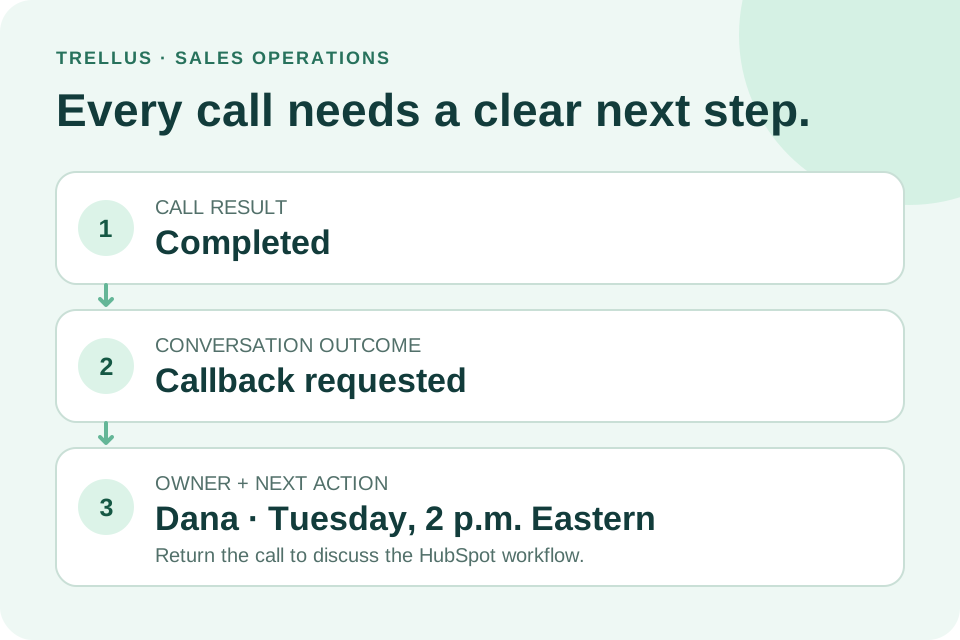
- Set the next step. Where a callback is needed, choose a follow-up date. Trellus can create a HubSpot call task with the relevant notes and record associations.
Working from a task queue? HubSpot uses queues to group and filter tasks; they are not a separate dialing mode. Its task-queue guide explains how to turn that grouping into a view.
Check the handoff, not just the dial count
Before the pilot, write down what a useful call record needs to contain. Afterward, inspect a few examples with someone who did not make the calls. Can they tell what happened and what they should do next?
- Record: is the activity associated with the person or company actually called?
- Outcome: can another rep distinguish a conversation, a voicemail, and a follow-up?
- Notes: are the useful details there, without requiring someone to reconstruct the conversation?
- Next step: does the callback have a date, an owner, and enough context to act?
- Team results: how many relevant conversations and qualified meetings came from the block, and how much cleanup was left afterward?
Keep dials, conversations, booked meetings, held meetings, and qualified opportunities separate. A higher dial count is useful only when the rest of the process still works.
What should you choose?
Keep HubSpot’s existing calling if it handles your workload comfortably. Try Trellus when you want power or parallel dialing inside HubSpot and want to inspect the complete call-to-follow-up experience. If you are comparing several providers, use the same example records and handoff checklist in every demo. For test calls, use phone numbers your team controls. Our cold-calling dialer guide covers the broader choice.
Trellus publishes this guide. The practical next step is a walkthrough using the HubSpot views your team already uses: explore the HubSpot integration and book a demo.


Power and parallel dialing in your CRM.